
Automation
Set up automatic sync to GitHub when Apple Notes is closed
Once automation is set up, you can automatically trigger Moire Sync when closing Apple Notes or by pressing a keyboard shortcut, without running it manually.
iOS Automation
Section titled “iOS Automation”-
Open the Shortcuts app.
-
Click the Automation tab at the bottom.
-
Click the + in the top right corner to create a Personal Automation.
-
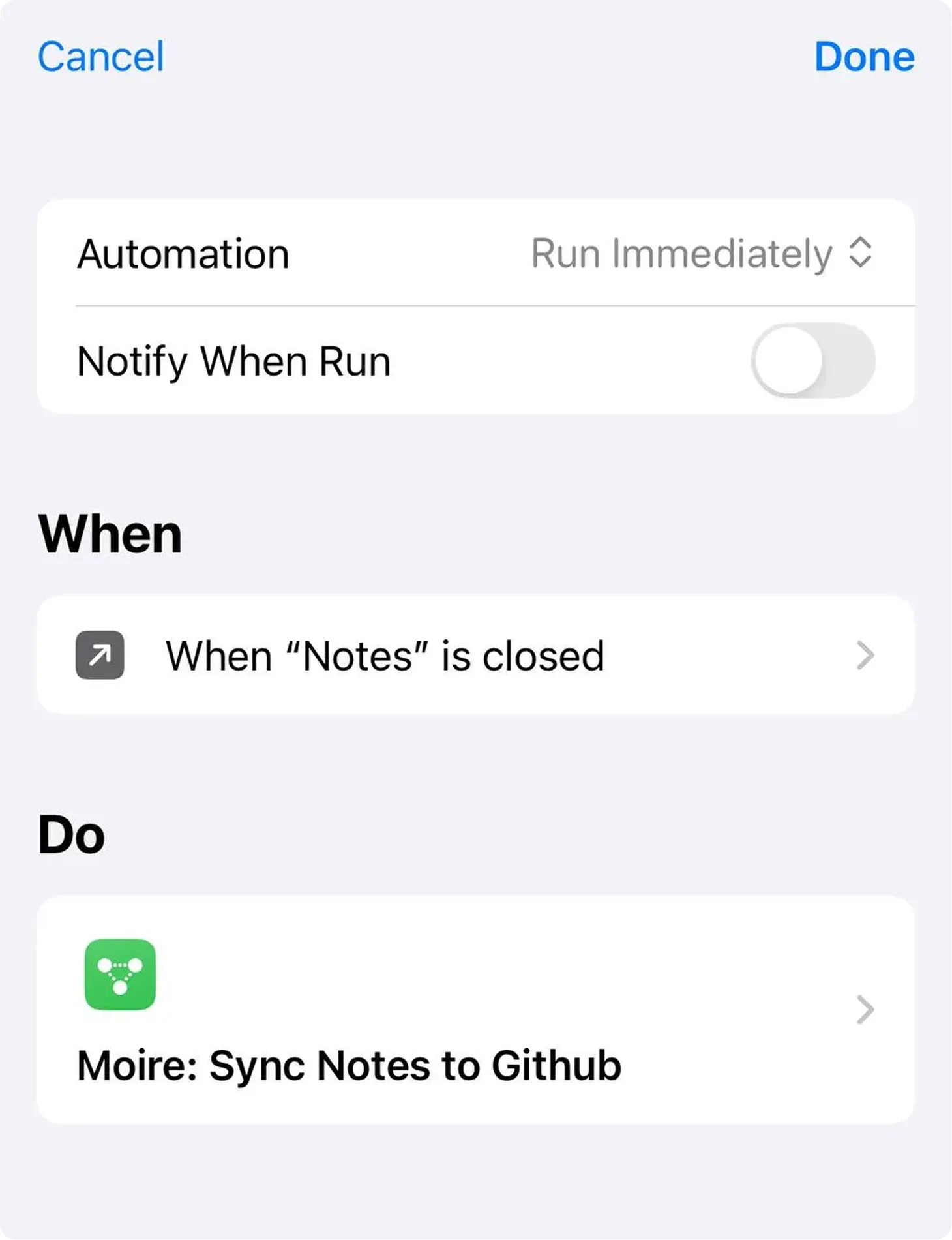
Find and select App from the list.
-
Click Choose, find and select the Notes app.
-
Check Is Closed.
-
Check Run Immediately.
-
Click Next.
-
Search for and select Moire: Sync Notes to Github.
macOS Automation
Section titled “macOS Automation”- Open the Shortcuts app.
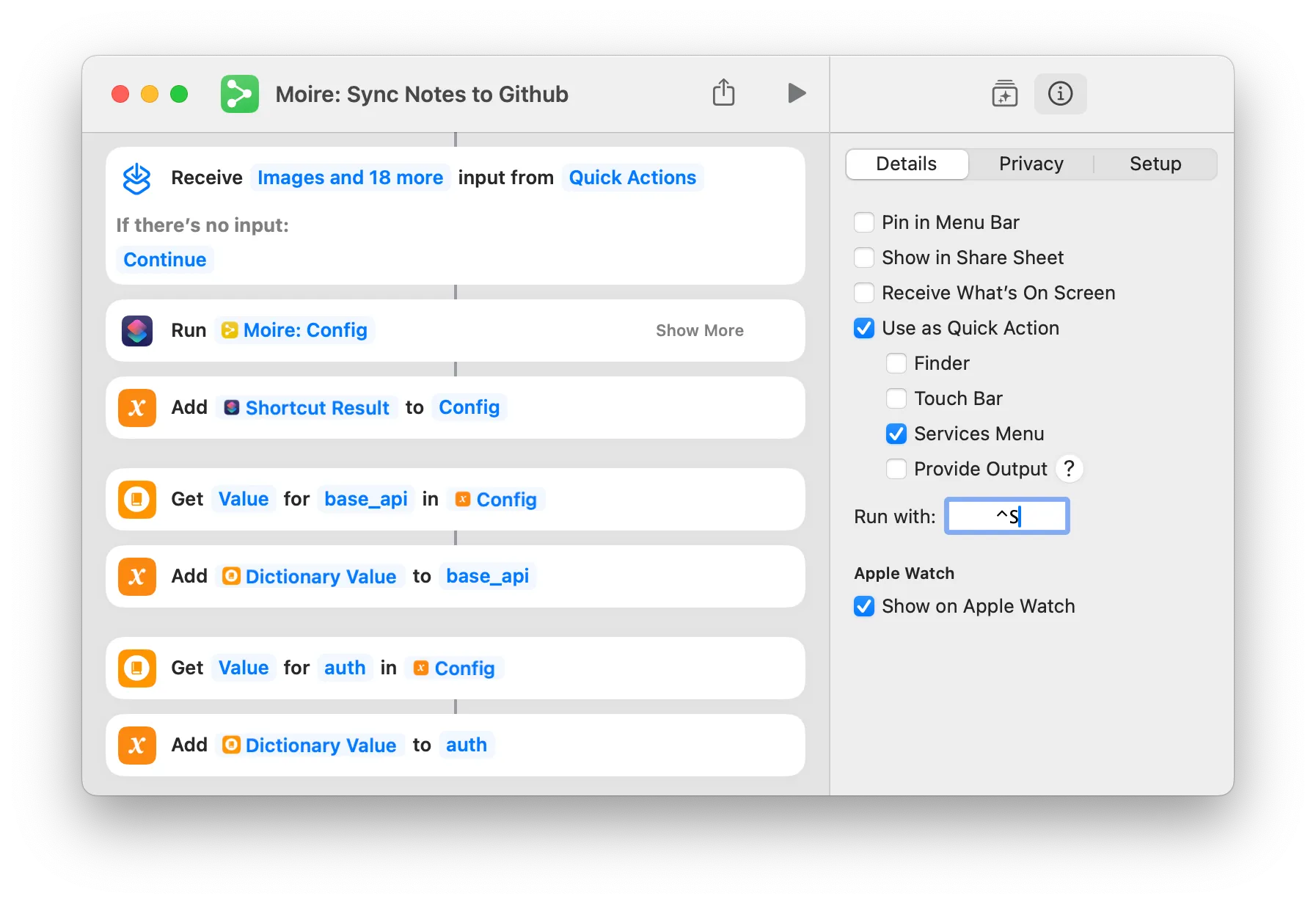
- Find Moire: Sync Notes to Github and right-click to edit.
- Select the
ⓘicon in the right-hand tab for details. - In Keyboard Shortcut, set a key combination, such as
^S. - Done! Now you can sync by pressing the keyboard shortcut while in Notes.
Test Automation
Section titled “Test Automation”Once setup is complete, let’s test it:
-
Open the Notes app and go to the Moire folder.
-
Create a new note and write some content.
-
Close the Notes app or trigger the keyboard shortcut.
-
You should see the Shortcut icon flash, indicating that it is syncing.
-
After a few minutes, visit your website; you should see the new note.
About Sync Timing
Section titled “About Sync Timing”When is sync triggered?
Section titled “When is sync triggered?”- ✅ Lock screen / Exiting or closing the Notes app
- ❌ Switching to another note (will not trigger)
- Keyboard shortcut trigger
How long does sync take?
Section titled “How long does sync take?”| Step | Time |
|---|---|
| Shortcut Upload | 3-5 seconds |
| GitHub Actions Build | 1-2 minutes |
| Total | Approx. 2 minutes |
Congratulations! 🎉
Section titled “Congratulations! 🎉”You have now completed the basic configuration for Moire!
You can now:
- Write in Apple Notes
- Trigger automatic sync
- View published content on your website
Next, let’s look at how to personalize your site.