
Verification
Confirm website deployment success
After completing the previous steps, let’s verify if the website has been deployed successfully.
Manually Trigger a Build
Section titled “Manually Trigger a Build”-
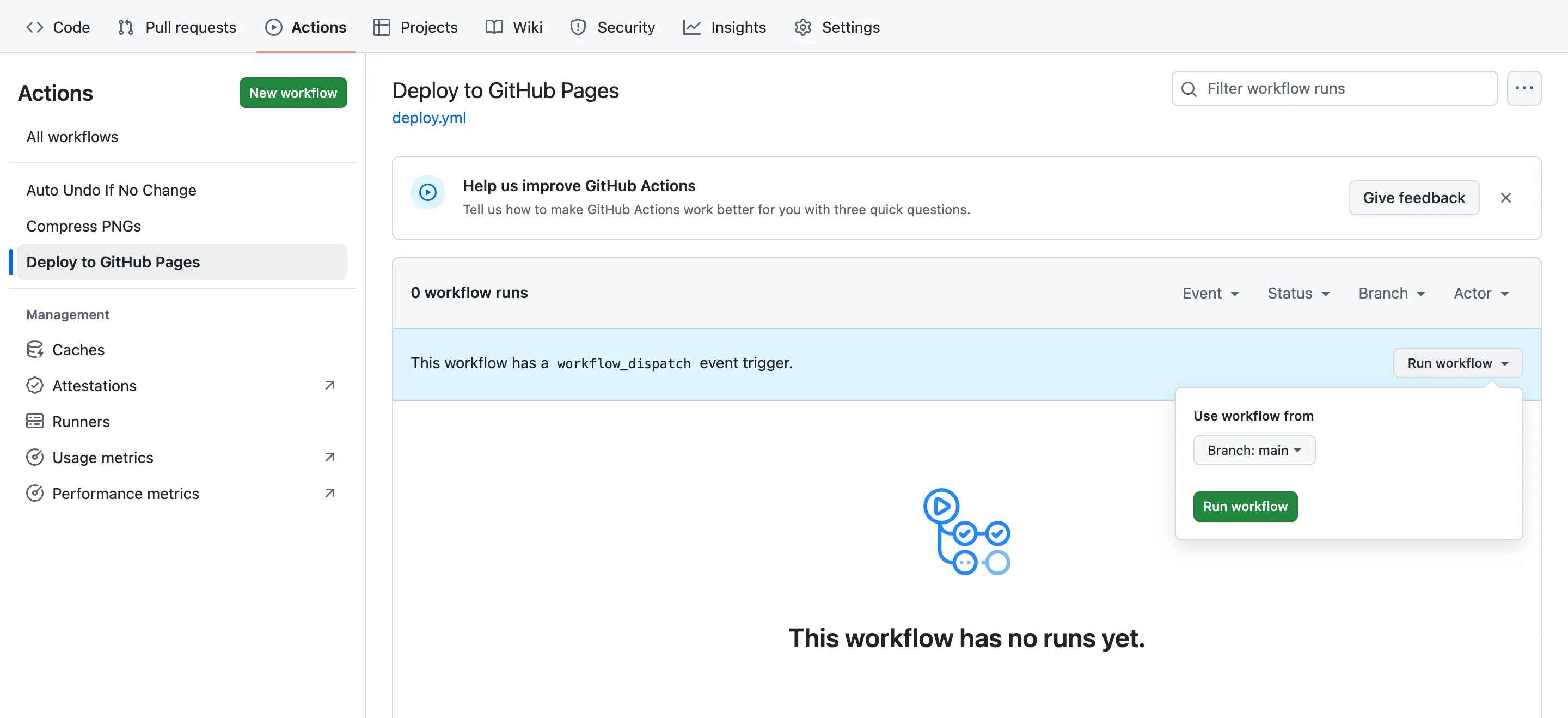
Go to your Forked repository
-
Click the Actions tab at the top
-
Find the Deploy to GitHub Pages workflow on the left
-
Click the Run workflow button on the right
-
Select the
mainbranch and click the green Run workflow button
View Build Status
Section titled “View Build Status”The build process usually takes 1-3 minutes. You can click on the running workflow to view details. Here is what the statuses mean:
| Status | Icon | Meaning |
|---|---|---|
| In progress | 🟡 | Building |
| Success | ✅ | Build Successful |
| Failure | ❌ | Build Failed |
Access Your Website
Section titled “Access Your Website”After a successful build, you can access your website at the following address:
https://<YOUR_USERNAME>.github.io/<REPO_NAME>/For example, if your GitHub username is aeris and the repo name is moire:
https://aeris.github.io/moire/Common Issues
Section titled “Common Issues”Build Failed?
Section titled “Build Failed?”If Actions shows a red ❌:
- Click the failed workflow to view the detailed logs
- Check if GitHub Actions permissions are correctly enabled
- Check if the “Build and deployment” Source is set to “GitHub Actions”
For more help, please see the Troubleshooting chapter.
Congratulations! 🎉
Section titled “Congratulations! 🎉”If you can successfully access your website, the deployment is complete!
Next, we need to configure the iOS Shortcut so you can sync notes from Apple Notes.